Running DiskDigger in Linux
This brief guide explains how to run DiskDigger under most popular Linux distributions.
The current Beta version of DiskDigger is built using Avalonia UI, which is a cross-platform toolkit that allows DiskDigger to run on various platforms including Linux, Windows, and macOS. Although support for Linux is still experimental, DiskDigger should provide all the same powerful recovery functionality as it does on Windows.
Download and run
Download the appropriate build of DiskDigger for your architecture:
When the download finishes, unzip it and run diskdigger!
From the command line
To download and run from a console, simply open a console window and download the appropriate version of DiskDigger for your system architecture.
If you have a x86_64 (or amd64) system:
$ wget https://diskdigger.org/diskdigger_linux_x64.zip
And if you have an arm64 system:
$ wget https://diskdigger.org/diskdigger_linux_arm64.zip
And then proceed to unzip it and execute it:
$ unzip diskdigger_linux_x64.zip (or _arm64.zip)$ ./diskdigger
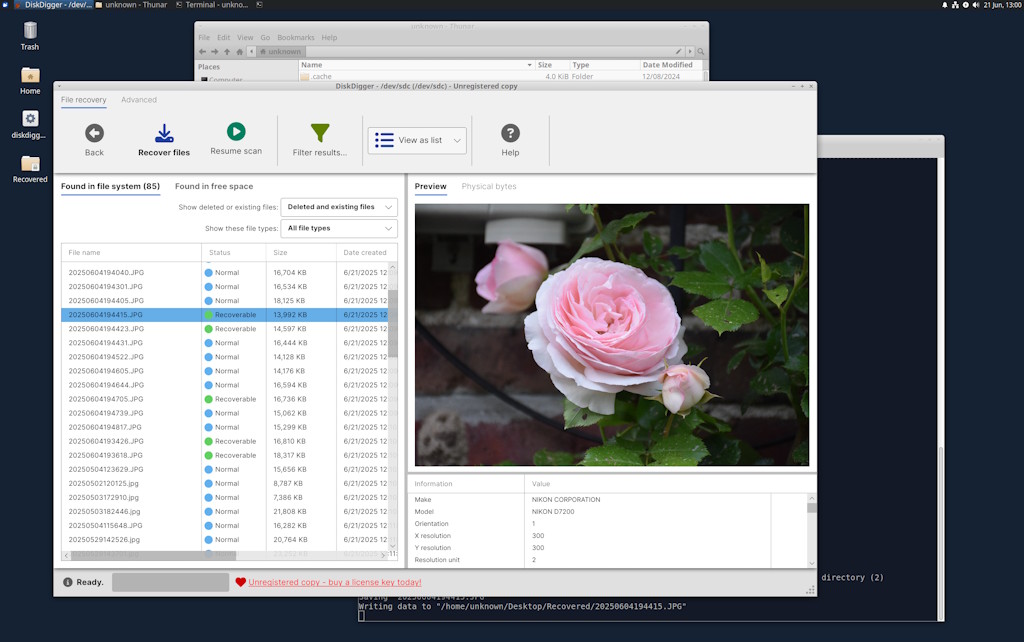
Here is DiskDigger running in Xubuntu 24, for example:
Considerations
Here are a few things to keep in mind when running DiskDigger in Linux:
- In order to get low-level access to your disks, DiskDigger needs superuser (sudo) access. To do this, DiskDigger attempts to launch a small privileged helper service using PolicyKit (
pkexec), which runs in the background alongside the DiskDigger GUI. Therefore, when DiskDigger opens, you might see a popup dialog asking for your superuser password. If PolicyKit is not available, or fails for any reason, you may also try running the entire DiskDigger app as sudo:sudo ./diskdigger - DiskDigger tries to automatically detect the disks in your system by searching for devices of the form
/dev/sdn,/dev/hdn, and so on. If your disk has a different device name, or if you want to scan a particular partition (e.g./dev/sda1), you can actually pass it as a command line parameter to DiskDigger:./diskdigger -f /dev/sda1
What about macOS?
Please refer here for running DiskDigger on macOS.
Have fun!
...and let me know if you encounter any issues!
For posterity
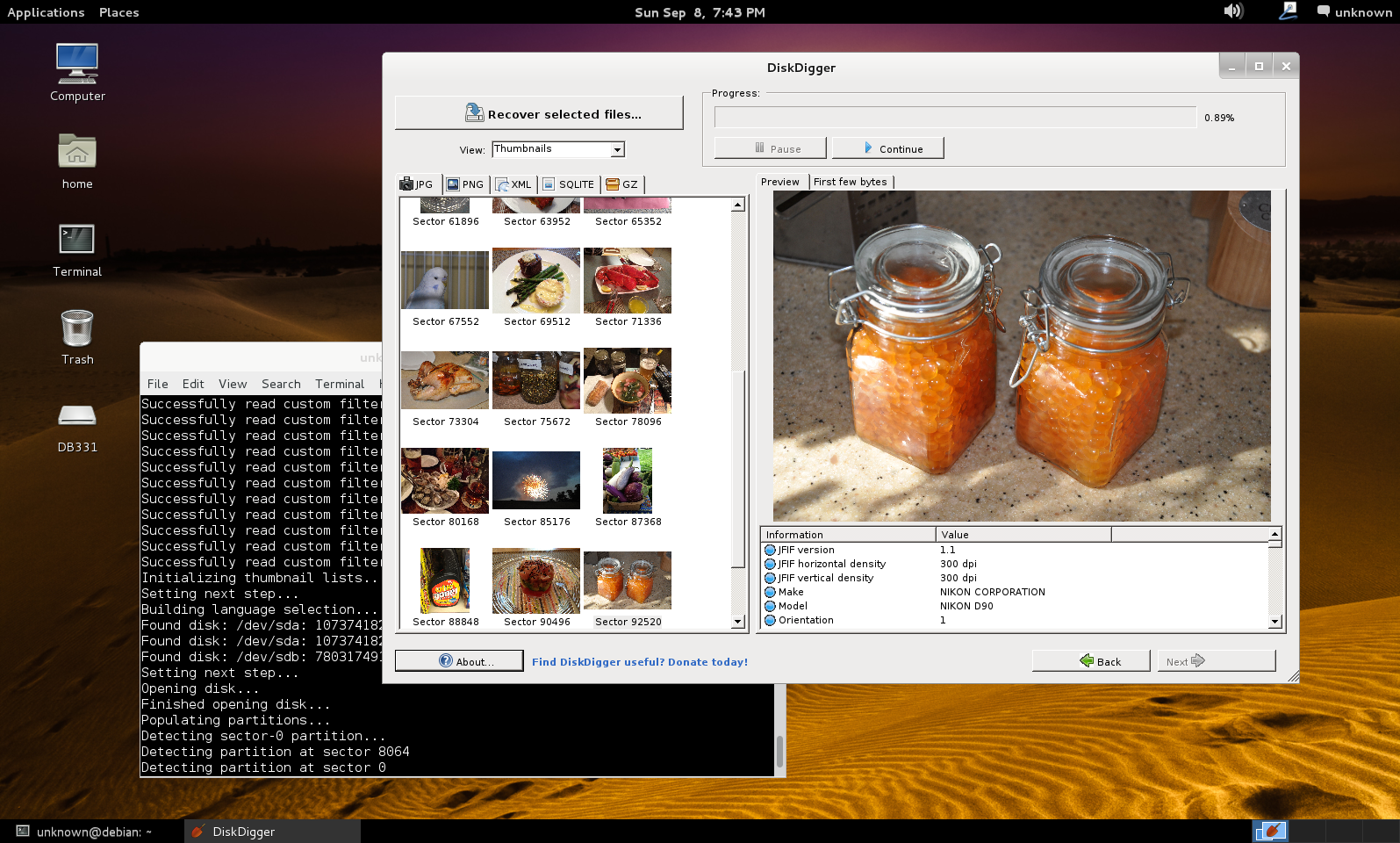
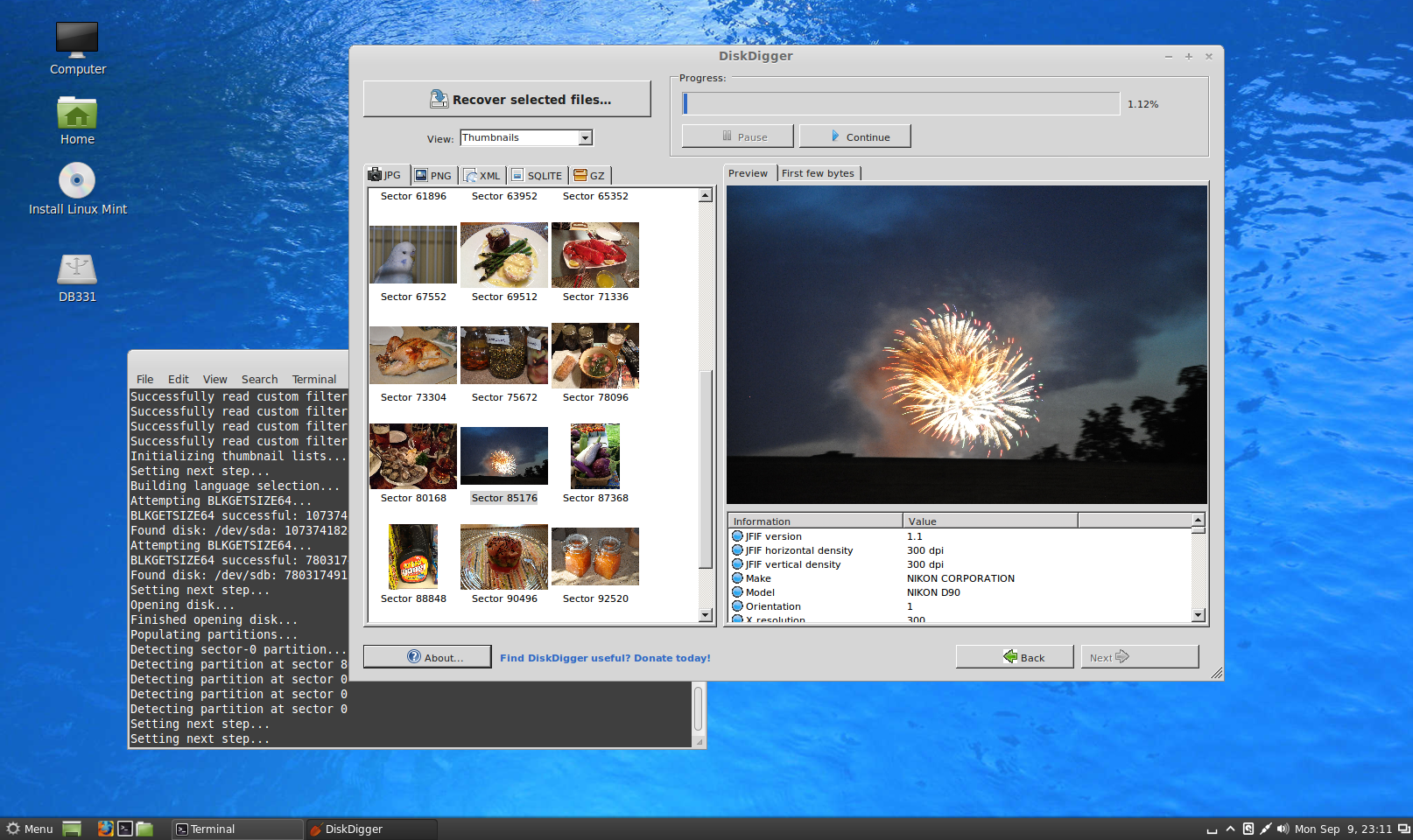
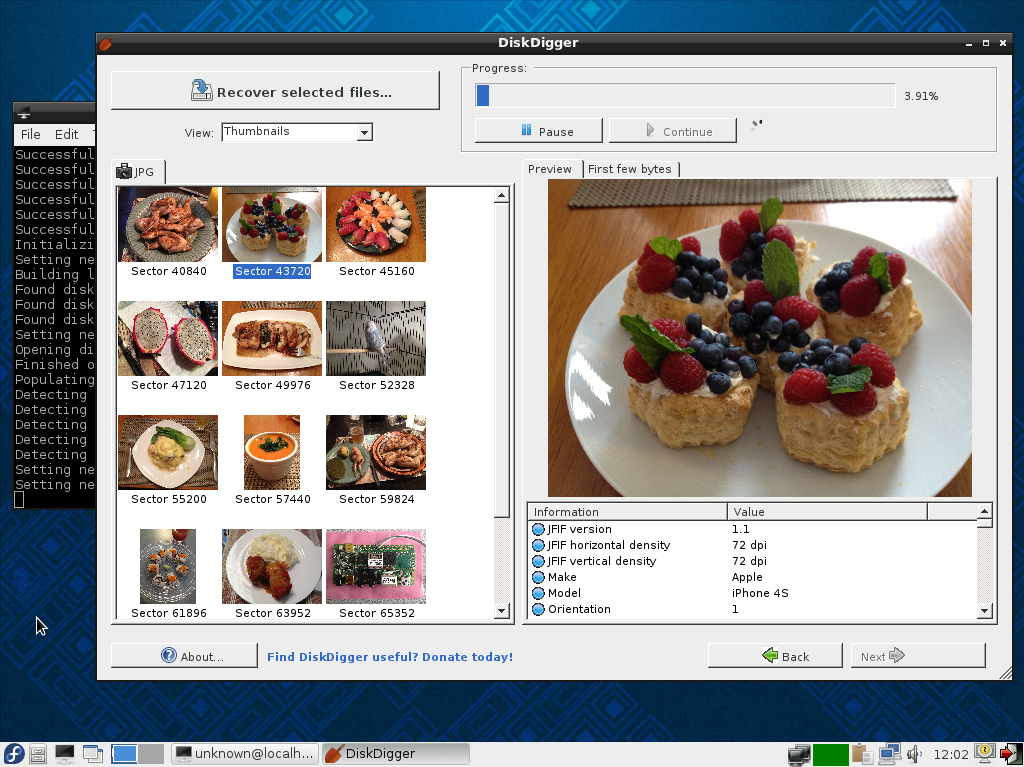
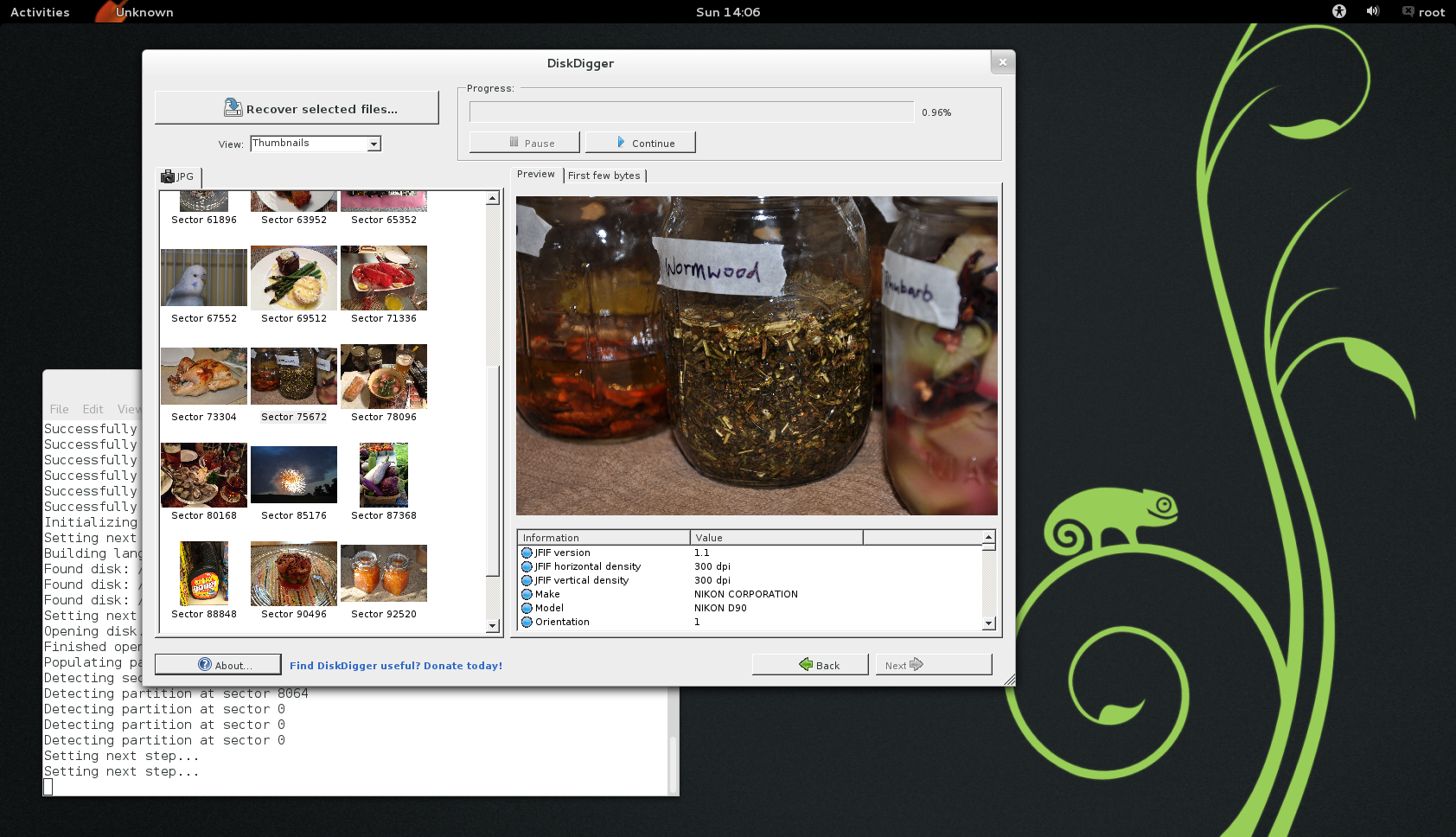
Here are some screenshots of older versions of DiskDigger running in Linux, using the Mono framework and its implementation of Windows Forms, which allowed the Windows version of DiskDigger to run unmodified (albeit imperfectly) on Linux: